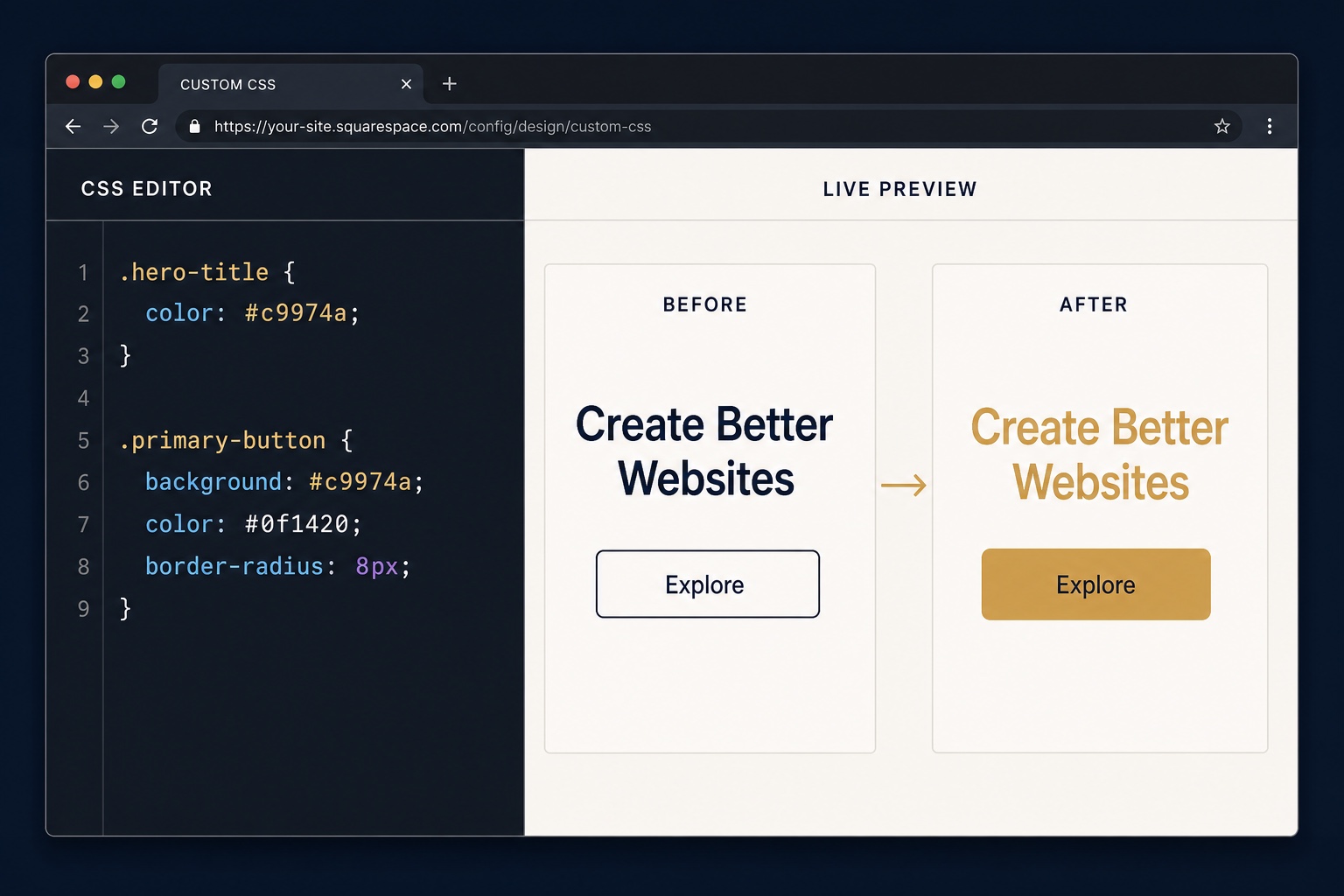
Squarespace's design settings cover a lot, but every site owner eventually hits a wall: the button style you want does not exist, a section needs different spacing on mobile, or the header should behave in a way no toggle offers. Custom CSS is the escape hatch. It is also widely misunderstood, and most advice online is scattered across forum threads and plugin-seller blogs.
This guide is the complete picture as of August 2026. It covers what the Squarespace CSS editor can and cannot change, which plans gate which custom code features, how to add CSS without breaking your site, working copy-paste examples for Squarespace 7.1, and the honest point where CSS stops and real development starts. Every technique connects to my free library of 14 tested Squarespace snippets you can copy directly.
I write this as a developer, not a plugin seller. Over 8+ years and 250+ projects I have shipped custom Squarespace work ranging from CSS polish to full API-driven builds, including a custom music widget for StudioVerso and a 365-property rental platform for McCann Realtors.
What can custom CSS actually change on Squarespace?
Custom CSS on Squarespace can restyle nearly every visual property of every element the platform renders: typography, colors, spacing, borders, shadows, hover states, animations, and responsive behavior. The editor loads your rules after Squarespace's own stylesheets, so your declarations win most specificity battles without hacks.
- Typography beyond the style panel: per-section font sizes, letter spacing, fluid
clamp()scaling, and custom underline styles - Buttons: corner radius, gradients, hover lifts, and outline variants, like the button hover effects snippet
- Headers and navigation: overlay styles such as the transparent header snippet that lets a hero image sit behind your menu
- Section-level control: target one section by its
data-section-idattribute and leave the rest of the site untouched - Images and galleries: rounded corners, filters, and effects like the image hover zoom snippet
- Pure-CSS animation: keyframe effects, gradient text headings, and themed browser scrollbars via the custom scrollbar snippet
- Responsive fixes: hide, resize, or restack elements at any breakpoint with media queries
One less-known capability: the editor accepts LESS syntax, so nesting and variables compile fine. That is convenient for organizing a larger stylesheet, though plain CSS is easier to debug when something misbehaves.
What can custom CSS not do on Squarespace?
CSS is a styling language, so anything involving behavior, data, or new markup is out of scope. Custom CSS cannot add JavaScript interactivity, fetch data from an API, create new content elements, edit Squarespace's HTML templates, or run tracking scripts. It also cannot touch the checkout flow: Squarespace locks checkout pages so custom code never applies there.
Squarespace covers those gaps with three separate tools, each with its own plan requirements and risk profile:
| Tool | What it does | Where it lives | Plan requirement |
|---|---|---|---|
| Custom CSS editor | Visual styling only: fonts, colors, spacing, effects | Website Tools, Custom CSS | All current plans |
| Code blocks | HTML, scripts, or embeds inside one page section | Any page, add a Code block | Plain HTML on all plans; scripts and iframes need Core and up |
| Code injection | Site-wide scripts in the header or footer, plus per-page header code | Website Tools, Code Injection | Core, Plus, or Advanced |
| Developer platform | Full template source control | Git and local tooling | Squarespace 7.0 sites only |
Developer mode deserves a caveat: it exists only on Squarespace 7.0, it is not coming to 7.1, and it locks your template out of some automatic updates. For the vast majority of sites in 2026, which run 7.1, the practical customization toolkit is custom CSS plus code injection.
A concrete measure of the split: in my own snippet library, 6 of the 14 snippets are pure CSS and run on any plan, while the other 8 need a code block or code injection because they involve JavaScript or extra markup. Roughly half of the popular Squarespace customizations people ask for are, strictly speaking, not CSS jobs.
Which Squarespace plans allow custom CSS and code injection?
Every current Squarespace billing plan, Basic, Core, Plus, and Advanced, includes the Custom CSS editor, so plan choice never blocks pure styling work. Code injection is different: as of August 2026, Squarespace documents it as available on the Core, Plus, and Advanced plans plus some legacy Business and Commerce plans, which means the entry Basic plan cannot run site-wide JavaScript, tracking scripts, or third-party plugin embeds. In practice that draws a clean line: if a change is visual (fonts, colors, layout spacing, hover effects), the cheapest plan can ship it through custom CSS, and if a change is behavioral (popups, custom widgets, analytics pixels, script-driven animations), it needs at least the Core plan. Squarespace has renamed plans before, the current lineup rolled out to replace Personal and Business across 2024 and 2025, so always confirm gating on the official plan comparison page before upgrading.
| Plan | Custom CSS editor | Code blocks with scripts | Code injection |
|---|---|---|---|
| Basic | Yes | No | No |
| Core | Yes | Yes | Yes |
| Plus | Yes | Yes | Yes |
| Advanced | Yes | Yes | Yes |
| Legacy Personal | Yes | No | No |
| Legacy Business and Commerce | Yes | Yes | Yes |
Plans change
Squarespace rolled out the Basic, Core, Plus, and Advanced lineup to replace Personal and Business across 2024 and 2025, and feature gating has shifted before. Before upgrading a plan just for code access, confirm the feature list on Squarespace's current pricing page and the official code injection help article.
How do you add custom CSS to Squarespace safely?
The editor itself is simple. The discipline around it is what keeps a site maintainable, especially once your stylesheet grows past a few dozen rules. This is the exact process I use on client sites:
- Open the CSS panel: from your site dashboard go to Website, then Website Tools, then Custom CSS. On older dashboards the same panel lives under Design.
- Copy everything already in the panel into a local file before touching anything. This is your rollback point: Squarespace keeps no version history for custom CSS.
- Work on one change at a time and save after each. The live preview updates as you type, so a rule that breaks the layout is obvious immediately.
- Comment every rule with what it does and which page or section it targets. Six months from now, an uncommented stylesheet is a liability.
- Find precise selectors with your browser's inspector: right-click the element, choose Inspect, and prefer stable hooks like
data-section-idattributes and block classes such as.sqs-block-imageover auto-generated ids like#block-yui_3_17, which change if a block is deleted and rebuilt. - Check every breakpoint before you call a change done: Squarespace applies different styles on mobile, so test the built-in device preview plus a real phone.
- Keep the whole panel mirrored in a local file or a git repository. When an experiment goes wrong, and eventually one will, you restore in seconds.
Targeting one section
Every Squarespace 7.1 page section carries a unique data-section-id. A selector like section[data-section-id="YOUR_ID"] h2 scopes any rule to that single section, which is the cleanest way to restyle one part of a page without side effects.
Which copy-paste CSS snippets work on Squarespace 7.1?
The examples below are original, commented, and written for Squarespace 7.1. Paste each into the Custom CSS panel and adjust the values marked in the comments. For finished, more complete versions of the popular effects, each links to its page in the free snippet library.
Rounded buttons with a hover lift
This restyles every primary button site-wide: softer corners, a subtle shadow, and a lift on hover. Swap the radius and shadow values to match your brand. For gradient fills and outline variants, see the button hover effects snippet.
/* Rounded primary buttons with a hover lift */
.sqs-button-element--primary {
  border-radius: 10px; /* corner roundness, try 4px to 14px */
  transition: transform 0.2s ease, box-shadow 0.2s ease;
}

.sqs-button-element--primary:hover {
  transform: translateY(-2px); /* lift height on hover */
  box-shadow: 0 6px 18px rgba(0, 0, 0, 0.18); /* soft drop shadow */
}
A different background for one section
Scope any style to a single section using its data-section-id. Find the id with your browser inspector (see the step list above), then replace the placeholder value.
/* Restyle one page section only */
/* Replace 1234abcd with the section's real data-section-id */
section[data-section-id="1234abcd"] {
  background-color: #f7f4ee; /* section background */
}

section[data-section-id="1234abcd"] h2 {
  color: #1a2b4a; /* heading color inside this section only */
}
Fluid heading sizes without media queries
The clamp() function scales type smoothly between a minimum and a maximum size, which fixes the common complaint that 7.1 headings look enormous on tablets.
/* Fluid type: minimum size, preferred viewport-based size, maximum size */
h1 {
  font-size: clamp(2rem, 5vw, 3.4rem);
  line-height: 1.15;
}

h2 {
  font-size: clamp(1.5rem, 3.5vw, 2.4rem);
}
Hide any element on mobile only
Media queries remove clutter from small screens without deleting anything. This example hides the header's call-to-action button below 768px; the same pattern works for any selector.
/* Hide the header CTA button on phones and small tablets */
@media (max-width: 767px) {
  .header-actions .btn {
    display: none;
  }
}
Rounded corners and soft shadows on images
A small radius on every image block modernizes most templates instantly. Pair it with the image hover zoom snippet for a gallery-grade effect.
/* Round corners and add depth to all image blocks */
.sqs-block-image img {
  border-radius: 12px; /* corner roundness */
  box-shadow: 0 8px 24px rgba(0, 0, 0, 0.12); /* soft depth */
}
Animated underline on content links
This replaces the default underline in body text with a line that grows on hover, one of those details visitors notice without knowing why.
/* Animated grow-on-hover underline for links in body paragraphs */
.sqs-block-html p a {
  text-decoration: none;
  background-image: linear-gradient(currentColor, currentColor);
  background-size: 0% 2px; /* 2px is the line thickness */
  background-position: 0 100%;
  background-repeat: no-repeat;
  transition: background-size 0.25s ease;
}

.sqs-block-html p a:hover {
  background-size: 100% 2px;
}
More finished effects, including a transparent header, a hide-on-scroll header, custom scrollbars, and gradient text headings, live in the free snippet library, each with installation notes and its exact plan requirement.
Want it done right the first time?
I take on custom Squarespace projects for clients like StudioVerso and McCann Realtors: bespoke styling, widgets, integrations, and full builds. Custom work starts at $1,500 with a fixed quote up front.
Squarespace development servicesWhy is your Squarespace CSS not working?
Almost every report of custom CSS doing nothing traces back to one of six causes. Work down this list in order and you will usually find the culprit in minutes:
- A syntax error above your rule. The editor compiles the whole panel as LESS, so one missing brace or stray character can silently kill every rule below it. Re-add rules half at a time to isolate the break.
- The selector no longer matches. Auto-generated block ids change when a block is deleted and recreated, and the markup differs between Squarespace 7.0 and 7.1. Re-inspect the element and prefer stable classes and
data-section-idattributes. - You lost a specificity battle. Squarespace sets some properties inline or with high-specificity rules. Chain classes to increase specificity before reaching for
!important, and if you must use!important, comment why. - The rule sits in the wrong breakpoint. A declaration inside a desktop media query will never fire on mobile. Check which query wraps your rule.
- Caching. The editor preview is live, but the public site can serve cached pages for a few minutes. Hard-refresh or test in a private window before assuming the CSS failed.
- A locked surface. The checkout flow and certain system pages ignore custom code entirely, by design. No selector will reach them.
If the CSS worked last month and broke without any edits, the likely cause is a Squarespace platform update that changed class names in the underlying markup. This is rare but real, and it is why serious sites keep custom CSS commented and mirrored locally: a documented stylesheet takes minutes to re-point at new selectors, an undocumented one takes hours.
Custom code is unsupported by design
Squarespace's own policy places custom CSS and code injection outside the scope of their customer support. That is not a reason to avoid custom code, but it is the reason to keep it small, commented, and reversible, or to have a developer who answers for it.
When is custom CSS not enough?
Custom CSS on Squarespace stops being the right tool the moment a change needs data or behavior instead of styling. A real example: StudioVerso, a creative studio, needed their Spotify tracks presented as part of the site design, and no amount of CSS can fetch tracks from an API, so the fix was a custom widget written in vanilla JavaScript. At the far end sits McCann Realtors, a vacation rental business whose 365 properties live in a legacy SOAP API: their Squarespace site is fed by a Node.js middleware layer on Vercel, something CSS and even code injection alone could never do. Across 250+ projects at abdullahsajjad.dev, the pattern holds: CSS handles presentation, code injection handles behavior, and external services handle data. Hiring a developer makes sense exactly when your requirement crosses one of those two boundaries.
On cost: my custom Squarespace projects start at $1,500 for a template-based business site and range to $6,000+ for fully custom builds with e-commerce, integrations, or heavy custom code, each with a fixed quote up front after a free consultation. If the fix you need is genuinely one snippet, take it from the free library instead: that is what it is there for.
If you recognize your project in the custom category, the Squarespace development service page explains scope, pricing tiers, and timelines, and the StudioVerso case study shows what a custom widget build looks like end to end.